
TattooGen AI

Try On Tattoo: See It on Your Body First

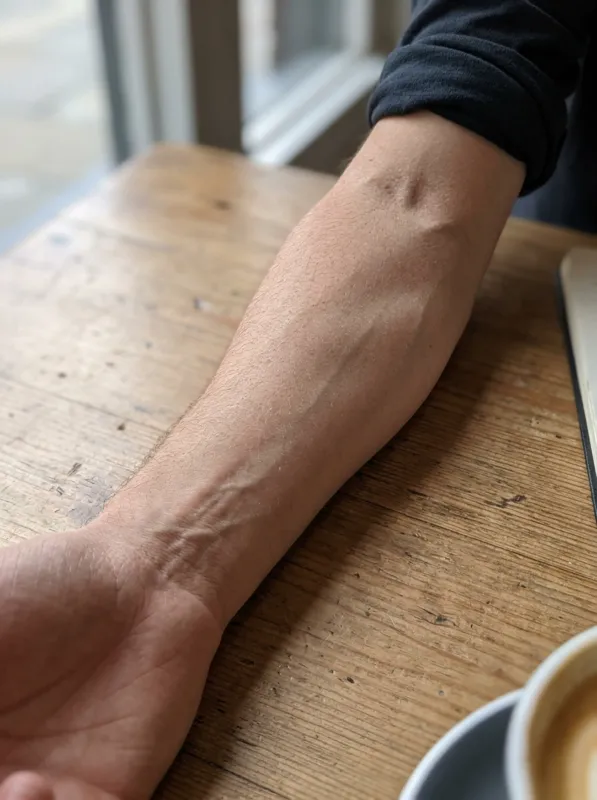
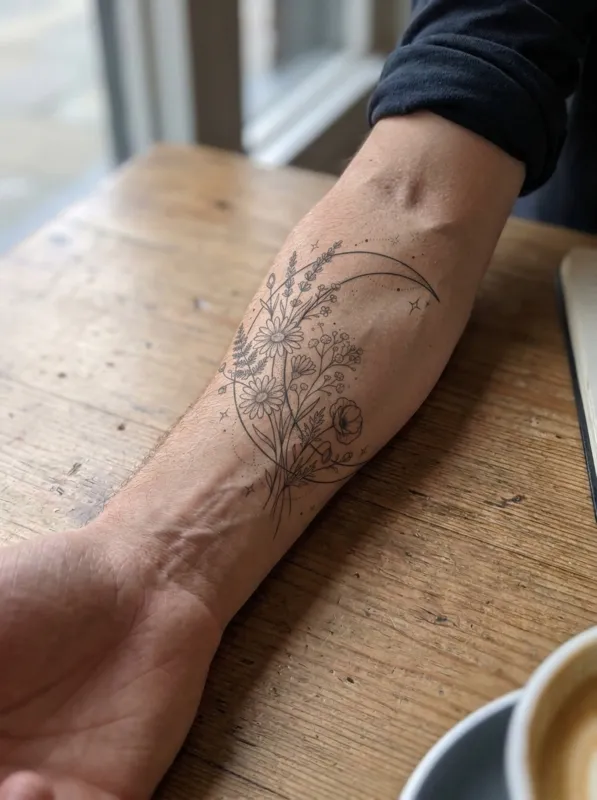
Upload a photo of the spot you want inked and a tattoo design. The AI tattoo simulator places it on your skin, following its curve and lighting.

  • Free with Google sign-in
  • 4 designs in ~20 seconds
  • Print-ready 2K PNG
Upload a photo of the body part

JPG, PNG, WebP or iPhone HEIC.

The tattoo design

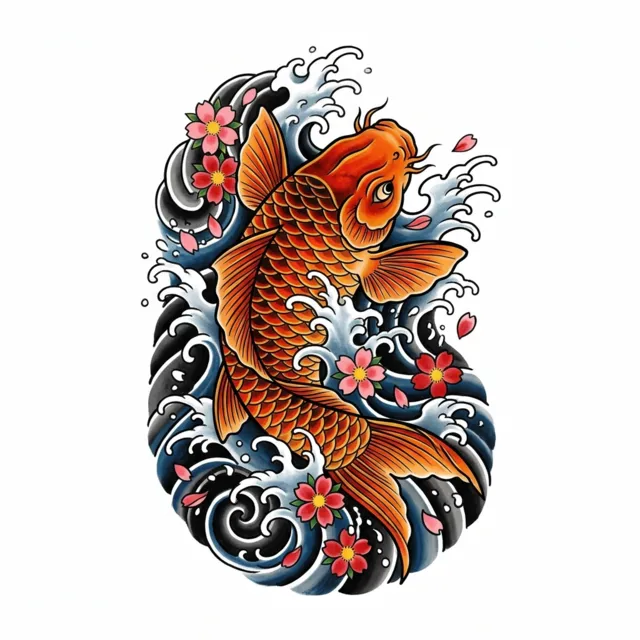
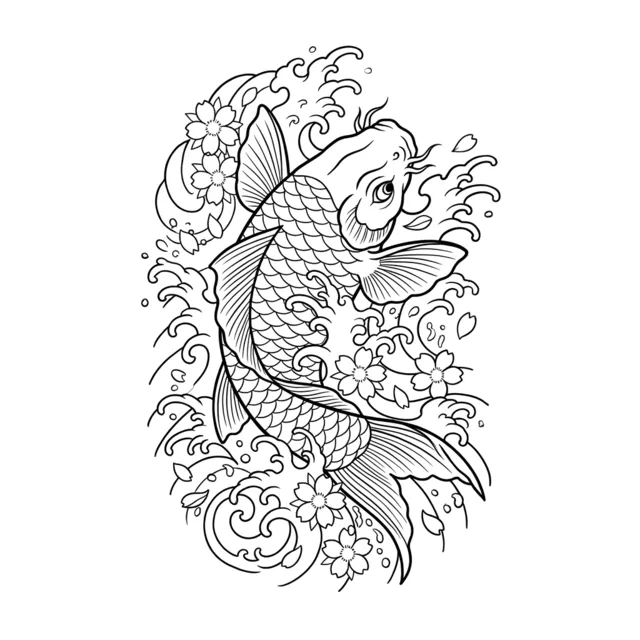
Upload a design, or pick one you made here. Clean designs on a white background work best.

JPG, PNG, WebP or iPhone HEIC.

Uses 2 credits (1 image) · free with Google sign-in, no credit card

Before
Before
After
After

How it works

  1. 1

    Photo of the placement

    Take a clear photo of your forearm, wrist, shoulder, back, ribs or leg in good light, with nothing covering the area.

  2. 2

    Add a design

    Upload any tattoo design or pick one you generated here. Clean designs on a white background give the best result.

  3. 3

    See it on your skin

    In about 20 seconds you see the design as a healed tattoo on your own photo. Try different placements and sizes.

Before
Before
After
After

Turn a photo into a tattoo

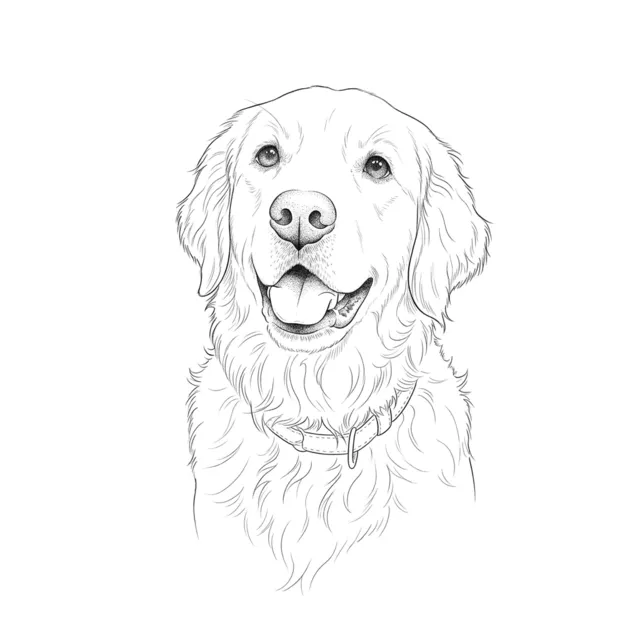
Pets, loved ones, places and flowers become clean tattoo line art that keeps the likeness, in the style you choose.

Turn a photo into a tattoo
Before
Before
After
After

Get a clean stencil for your artist

Any design becomes thin black outlines with shading and color removed, ready for thermal stencil paper.

Make a stencil

Simple pricing

Start free with Google sign-in: 8 credits, one set of 4 designs. No credit card.

Pro

$7.79 / month

300 credits / month · About 150 images

Pro+

Most popular

$15.79 / month

900 credits / month · About 450 images

Max

$33.99 / month

2,500 credits / month · About 1,250 images

Quick answer: Try On Tattoo is a virtual tattoo simulator: upload a photo of a body part and a tattoo design, choose the placement, and TattooGen AI shows the design on your skin as a realistic healed tattoo in about 20 seconds. Each try-on uses 2 credits; Google sign-in gives 8 free credits.

Why try a tattoo on before you book

Size and placement are the two things people most often regret. A design that looks great on paper can feel too small on a back or too busy on a wrist. Seeing it on your own photo, at roughly the right scale, makes the decision much easier and gives your artist a clear picture of what you want.

Tips for a realistic try-on

Use a photo taken straight on, in daylight, with the whole area visible. Pick the placement that matches your photo. If the size looks wrong, add a direction such as "make it smaller" and try again.

Frequently asked questions

Is the tattoo try-on accurate?+

It is a realistic preview, not a promise of the final result. Real ink depends on your artist, your skin and healing. Use it to judge size, placement and style.

Can I use my own tattoo design?+

Yes. Upload any design image, or pick one you made with the AI tattoo generator.

Whose photos can I upload?+

Only photos of yourself, or of an adult who gave you permission. You must be 18 or older. Do not upload photos of minors, celebrities or public figures.

Are my photos stored?+

Uploaded photos are deleted automatically after 7 days. Your generated designs stay in "My designs" for 90 days, then they are deleted too. We never use your photos to train AI models and never show them publicly.